Before you plan
Questions travelers ask first
Clear answers about multi-modal planning, AI suggestions, collaboration, privacy, and pricing.
What is Smooth Traveling?+
Smooth Traveling is a web-based trip planner for building day-by-day itineraries, connecting flights and overland legs, coordinating with travel partners, tracking budgets, and keeping trip memories together.
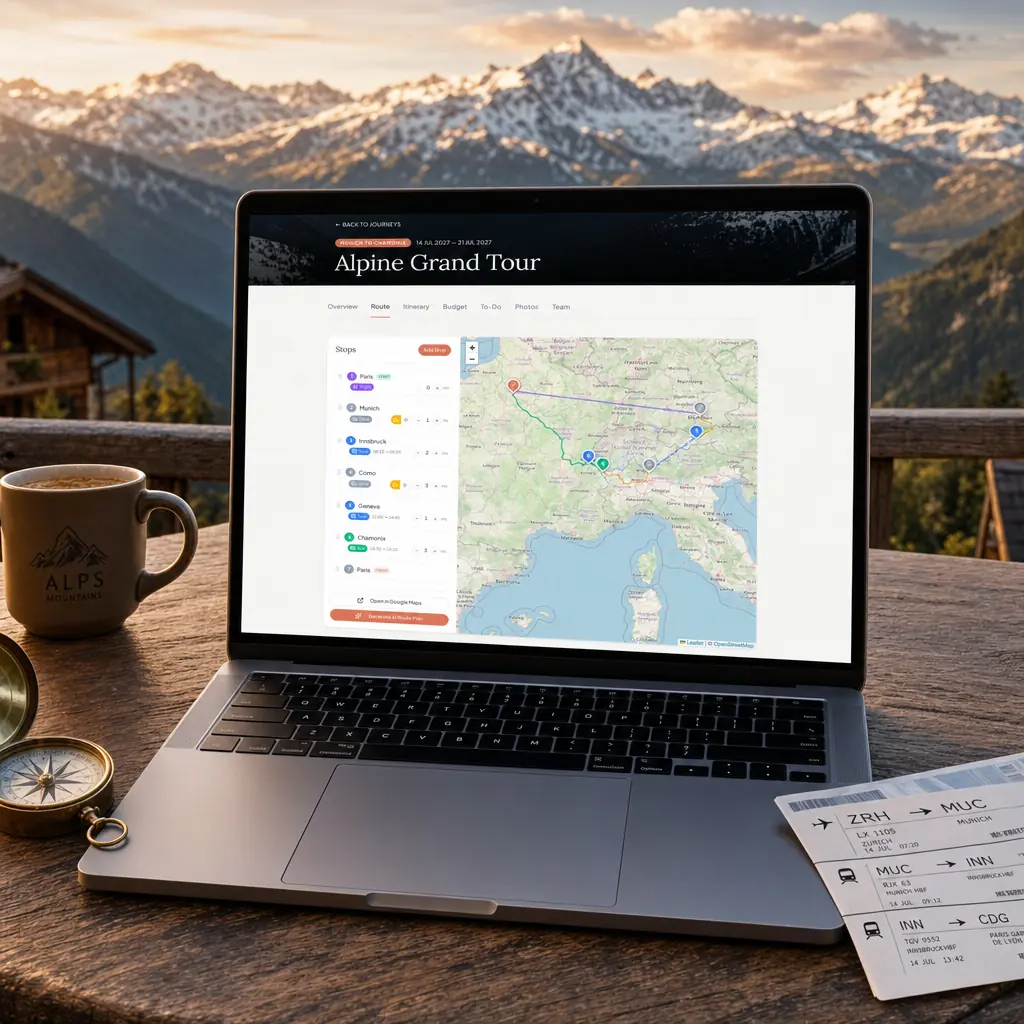
Can I plan a road trip or a trip with multiple transport modes?+
Yes. You can combine flights, trains, buses, ferries, and driving legs in one route, including multi-day stops and border crossings. Smooth Traveling is a planning tool, so you still confirm schedules and bookings with the relevant provider.
How does the AI handle venue suggestions?+
For restaurant and activity requests, Smooth Traveling can use real-place lookup when results are available. Not every AI suggestion is a venue suggestion, so treat all output as planning help and confirm opening hours, availability, and suitability directly with the provider.
Can my travel companions help edit a trip?+
Yes. Invite collaborators to work on the same trip in real time. You can keep the itinerary, transport details, and budget in one shared workspace instead of passing around separate notes.
Does Smooth Traveling book flights, hotels, or activities?+
No. Smooth Traveling helps you research and organise a trip; it is not a booking platform or travel agent. Make reservations directly with airlines, hotels, venues, and other providers, then store the relevant details in your plan.
How does budgeting work across currencies?+
Add estimated and actual costs by category and choose a trip currency. The budget view helps you compare spend with your overall plan, including trips that cross borders and use more than one currency.